Thursday, May 30, 2013

Close Read Complex Text, and Annotate with Diigo--Part 3

Close reading is a strategy for reading complex text. In Part 1, the focus is how to do a close reading. The focus in Part 2 is how to annotate with iPads. The focal points of this post are the teacher steps in close reading; how to create text dependent questions for informational text in 6th-12th grades; annotating in Diigo; and creating writing activities to go with close reading.

Click here to download as PDF
Below are the teacher's steps for creating a close reading lesson. However, the student steps are in the poster shown on the right:

Teacher Step 1: Choose the text

Choose a short and difficult text to do a close reading on. It should be at the frustration reading level.

Some examples to choose from for informational text are short speeches (or excerpts from a speech); research; paragraphs or chapters from biographies, memoirs, or historical accounts to name a few.

Teacher Step 2: Planning

Plan and do what you expect your students to do.
  • Decide if they will annotate on a paper copy, with sticky notes, or digitally.
  • Read and annotate the text. 
  • Look for a few key tier 2 and tier 3 vocabulary words to model or tell while modeling the thought process with annotation (or for scaffolding purposes).
  • Decide what student task, prompt, or protocol to use for writing and discussion during the process.
  • Create text dependent questions.
  • Consider what will challenge the students and what scaffolding to put in place.

Teacher Step 3: Students first read of text

When it's time for students to read the text, the teacher should:
  • Quickly provide a purpose for reading the text.
  • Teach/remind students how to annotate the text. 
  • If students are annotating digitally, then remind them how to use the digital tool and applicable technology procedures.
  • Allow the students to read it on their own.
  • Do not teach a mini-lesson prior to reading the text to connect background knowledge or information. Otherwise, the students might not need to read the text or will answer questions based on what the teacher said and not what's in the text.

Teacher Step 4: Quick write and discussion

Set the expectations for the writing assignment. It can be an informal task such as, "Write your impressions about the text and any lingering questions you have." It can also be an actual activity or focused question such as: 
  • SOAPSTone -- this can be used as a pre-writing activity or as a reading response prompt to get students to focus on certain aspects of the text such as the Speaker/author, Occasion/time period/context, Audience, Purpose, Subject/main idea, and Tone.
  • Be a detective and look for assumptions (explicit and implicit) behind the arguments.
  • Read like a historian and look for answers to these questions: Who wrote this? When was it written? What else do I need to know to make a considered and valued judgment? What is the author's point of view? Why was it written? Is this source believable? Why? Why not?
  • Claims and Evidence -- Look for the claims and evidence to support the claims.
  • Logical (logos), Ethical (ethos), and Emotional (pathos) -- When the writing is persuasive, look for logical, ethical, and emotional arguments/techniques in the text.

Teacher Step 5: Read text aloud to students (second reading)

Model the reading for the students. This gives the students the proper pronunciation of text and helps them think about the meaning again. The students will follow along and add to their annotations.

Teacher Step 6: Read text aloud to students while annotating (third reading)
Click here to download 6th-8th & 9th-12th PDF

Model all the thinking involved in reading the text.

Circle the powerful words, phrases, sentences, or paragraphs (instead of circling one word at a time).

Underline tier 2 and tier 3 vocabulary words, especially the ones they struggled with during their first reading. For tier 2 words, model the strategies for figuring out the meaning such as context clues or affixes/roots. For tier 3 words, give the definition of what it means.

Underline any parts that are confusing as well.

If this is new for your students, start with just the first three, then add the next one a week or two later.

If students are annotating digitally, it's possible that the tool does not have all of the annotation marks. Therefore, collaboratively create a key with some substitutions. For example, using the colors on the poster above, highlight powerful words in blue instead of circling; and highlight the confusing words/parts in green instead of underlining.

Students will continue to add to their own annotations during this reading.

Annotating in Diigo

Bookmark the online text, such as Vampires Prey on Panama, in Diigo. Then annotate and share the annotated version with collaborating students and the teacher. Here's directions how:


Click here for suggestions on how to annotate with an iPad.

Teacher Step 7: Text dependent questions

A text dependent question is a question that requires reading/rereading the text the students are currently using.

Below are the types of questions with examples from our sample text: Vampires Prey on Panama.
Click here to download as PDF (or to enlarge).

Teacher Step 8: Writing task

Writing tasks built into the reading are an important part of the routine. They can be written for specific audiences on a student or class blog, or they can be written from various prompts such as:
  • RAFTS: Role--What role or point of view will you write from?; Audience--To whom are you writing to? Who is your intended audience?; Format--In what format are you writing? A letter? Blogpost? Digital story / Drama / Script? A speech? A digital recording? A comic? etc.; Topic--What topic are you writing about? Why? What point will you be making?
  • CERCA: Make a Claim about the text. Support your claim with Evidence. Explain your Reasoning. What Counterclaims need to be presented? What is the intended Audience?
  • I-C-A-N-S: This is a spin-off of Silvia Tolisano's 21st century KWL and modified to do after reading. What new Information did you learn? How are the new ideas / information Connected to what you already knew? What Action will you take as a result of the reading, or how have the new ideas challenged your thinking? What New questions do you have? How could you Search for answers to your new questions?

Resources and attribution

Several resources were used to create this post such as the work of Fisher and Frey; much of the training I received from Arizona's Department of Education is represented here; and the text example and text dependent questions used in the poster were chosen by and created by my dynamic colleague, Theresa Bartholomew.

Not every lesson on the Internet is a quality lesson. However, here are a few starting points that I go to for finding close reading lessons:

Final thoughts

Creating close reading lessons are time consuming up front, but the end result is deeper understanding of the text, which means less reteaching in the end. It also allows the students to learn and exercise strategies which will strengthen their reading, critical thinking, communication, collaboration, and writing skills.
  • What tips or insights can you share about creating close reading lessons or text dependent questions?
  • What tips, insights, or resources can you share about annotating in Diigo?
  • Where do you go to find quality close reading lessons or text dependent questions?
  • How else does this post connect with you? What questions or thoughts do you have about the topic?

Monday, May 20, 2013

Connecting 21st Century Learning, Technology, and Common Core Standards

21st century learning and technology integration are part of the Common Core design. 21st century skills include:
CC by 3.0 Tracy Watanabe
  • communication and collaboration
  • creative thinking and innovation
  • curation: research and informational fluency
  • critical thinking, problem solving, and decision making
  • digital citizenship
  • computing skills: using technology to learn, communicate, consume, contribute, design, and produce

In the introduction of the Common Core, those skills are referenced, and specifically outlined as a key design consideration, and placed in a portrait of a student who is college and career ready.

They are also interwoven in the anchor standards, which can be viewed by specific grade levels.

Academic conversations

Academic conversations are part of 21st century learning and the Common Core Standards. Constructivism in learning, building meaning based on prior understanding, occurs in academic conversations (speaking and listening face-to-face and digitally, as well as in writing).

Academic conversations are no longer coming just from the teacher; they are taking place face-to-face and digitally with peers and others. Some digital examples are G+ hangouts, Skyping, webinars, etc.

I recently listened to a Schools Moving Up webinar by Nancy Frey called Collaborative Conversations: Speaking and Listening in Secondary Classrooms. Some of the highlights of that webinar were:
  • Speaking and listening is no longer coming only from the front of the classroom. It comes in many forms face-to-face and digitally. Some digital examples are digital storytelling, webinars, video, and many other multimedia.
  • Great speaking and listening skills are closely linked to writing.
  • Three types of writing in the Common Core are: arguments, informational, and narratives. Blogging can help with all three of those.
  • Speaking and listening is connected to the content! They will be better writers if they are better speakers.
  • Accountable talk digs deeper and has sentence stems to help with getting those deep academic conversations (see University of Pittsburgh for more information about this).
  • Language frames can help set up those conversations.
  • Discussions can be fostered by the text-dependent questions (about a speech!)
  • Close reading: Reading, rereading text and diving deeper includes critical thinking, and speaking and listening. Vocabulary and word choice would be a rich discussion for this (especially when looking at a speech).
  • The webinar has great close reading and text dependent question connections and examples. Text dependent questions are not always "right there" answers, because sometimes it's inferred and requires critical thinking to deduce.
  • Voki, Voicethread, Glogster, Audioboo, Goanimate, and all the digital storytelling apps and sites would be great ways to bring in speaking and listening with technology.

Technology enhances the learning
Mr. Lockwood's Class Mystery Skyping with Mr. Avery's Class

Technology allows students to learn from outside the classroom, bring experts and peers in to learn new ideas and receive feedback on their learning. It also allows students to publish content and have academic conversations that couldn't exist due to time restrictions or proximity limitations. Technology allows students to learn and make connections beyond the four walls of the classroom.

Final thoughts

The shifts that need to occur in 21st century learning are the same shifts that need to take place to implement Common Core Standards. The bottom line is, it's just good teaching and learning.
  • What relationship do you see with 21st century learning, technology, and the Common Core?
  • How are you implementing the Common Core or 21st century learning in your classroom? How does technology enhance that?
  • What connections have you made or questions do you have about 21st century learning, technology, and the Common Core?

Saturday, May 4, 2013

Close Read Complex Text, and Annotate with iPads--Part 2

In Close Read Complex Text, and Annotate with Tech--Part 1, the focus was how to do a close reading. In Part 2, the focus is how to annotate with iPads, and insights gained from a lesson done with students in first through third grades.

iPad apps for annotating

Many apps can be used for annotating. I'm listing a few apps that can be used for close reading, and will go into detail on the one I've used the most with students.

AppTutorial LinksLearnabilityCost
PaperPort Notes
PaperPort Notes Tutorial
Tips listed below
EasyFree
Educreations
Educreations Tutorial
Tips listed below
EasyFree
Notability
Notability YouTube TutorialMedium$1.99
Skitch with Evernote
Skitch for iPad tutorial by the EdubloggerMediumFree


Lessons learned through annotating in Educreations

On the first day of close reading, it was easy to use Educreations to annotate. For each new page, we'd add a new page to the presentation. We took screen shots to keep a "hard copy" of their written reflections. However, on day 2, we realized that importing those photos to continue annotating did not keep the flow and momentum we had the first day.

If the purpose is to capture their thought process real time, then Educreations is perfect as a screen cast. If the purpose is to continue to annotate the same text multiple times, then I'd use one of the other apps.

Here is an example of the third reading of the text in a second grade classroom, where the students listen and add notes to their own annotations while I am modeling my annotating the poem, The Dumb Soldier:


Click here to view my full lesson.

Introducing students to Paperport Notes

The first time I introduced the Paperport Notes app to Mrs. Rivera's Second Graders, I gave them "free exploration" time. I let them know I wasn't going to help them for five minutes, but I wanted them to try to figure out how to use the app. In that short time, they figured out many of the features, and piqued their curiosity.

What they needed guidance with was using the speech to text and the image to text (which converts typed text from an image to typing on a note). The first time image to text is used, it asks for registration, so they registered it to their teacher.

Annotating with PaperPort Notes

The main procedure we learned was to name it with the student's name and the title of the story they were annotating. They liked taking photos from their books to insert into the app, but had to remember to insert a new blank page first before inserting a new photo (otherwise it erased what was on their page).


To set up email on the iPad, I recommend creating a gmail account for your class to use on your iPads.

Note: PaperPort Notes works well with My Big Campus.

Students create their own mini Digital Story of the poem

I asked students to create a digital story of the journey of the toy soldier, and share their tale and emotions about the “fairy things” they encountered in their grassy forest. In 15 minutes, here were a few examples from first grade using the ShowMe App:


I wonder what products they would create if I had given them more time to work on a storyboard first... Regardless, I love how they all took facts from the story to create their own, with a problem and solution.

Annotating on a desktop computer

While this post focused on annotating with iPads, I must mention my favorite desktop/laptop computer site for older students to annotate text online is Diigo. Students can highlight, place sticky notes, comments, and share those annotations with others. The collaboration through Diigo is powerful.

Final thoughts

I had the privilege of close reading with this poem in different classrooms. The experience was a little different each time depending on the needs of the students.

In first grade, we spent more time talking about the structure of the poem and rhyming words because that was where they were at. In second grade, we spent much of our time trying to figure out if it was a real soldier or a toy, and why it was titled The Dumb Soldier. In third grade, most of our focus was on whether he hid the toy or lost it, and why he didn't mind hiding it during spring.

I am thankful that AJUSD teachers Gina Fraher, Rhonda Best, Megan Rivera, and Jamie Del Rosa allowed me to experience this in their classrooms, and I thank them for jumping in with me and giving it a try with their reading groups.

  • What apps or desktop sites would you have students use to annotate text?
  • What questions do you still have, or ah-ha's do you want to share?

Tuesday, April 23, 2013

Digital Storytelling and Stories

Digital storytelling is an art form conveying a message. It uses images and voice narration to convey emotion with the message, and to ignite empathy from the audience. It incorporates storyboarding and writing a script. It is created with digital tools and published on the Internet.

I often think of digital storytelling as something done in first person because it creates that personal connection. Whereas, I think of a digital story as an anecdote or story typed or narrated in third person.

Overview


Click here to view the cube above on RVLIO.

The art of digital storytelling

I recently participated in an outstanding webinar by ISTE's Special Interest Group for Digital Storytelling, where Bernajean Porter shared about the "Art and Soul of Digital Storytelling." After being inspired by the webinar, I created the following page summarizing some of my key take-aways:

Click here to download PDF

Explanations, prompts, and examples

Click here to open as a PDF with links -- Click on the picture to enlarge

Step 1: Writing the script and planning the project
Click to download
  • Prompt: I'd choose one prompt to introduce the process of digital storytelling to students. I might even do the first one as a whole group with parts and roles shared by the students. As our class becomes confident with the process and media, I'd open it up to more choices and smaller groups/individual productions.
  • Teaching about the writing: Teach the importance of first person for adding spice to the story; share an interesting problem, perspective, or insight; and use strong word choice to convey the message. Start with the ending in mind -- know what point the story is trying to convey.

Step 2: Production and digital tools
  • Choose the tool: When I am introducing the digital storytelling process to classes, I choose the tool for them to use. Once the process is established and they have a toolbox of digital storytelling sites to use, I give them a choice in tools.
  • Images and Creative Commons: When the tool doesn't have built in images, have students create their own images, take their own photos, or find photos that have Creative Commons Licenses, and have them properly cite the photo either on the same page as the picture or at the end.
  • Background music and Creative Commons: If there is not music to choose from on the site, then find music that is legal to use in your video. I select music from the list suggested by Creative Commons. However, background music is not a necessity, especially if it's new to the class. 
  • Production: Before production, I treat this part of the process much like I would the rough draft of a writing assignment with editing and revising. Here's where the mini-lessons come in about voice, word choice, etc. I like to conference with my students to make sure they are ready for production, then I allow them to start once they've gathered all of the photos and music (optional).

Digital Story and Digital Storytelling tools

Some of the sites below require creating accounts, which typically collects the user's full name, email and password. Therefore, children under age 13 are restricted from creating those accounts according to the COPPA laws. This does not mean those sites are harmful to the students, it just means they cannot give out their personal information for their own protection. Therefore, it's recommended to read the Terms of Agreements. Some of these sites have education versions of their product. Other times, the teacher may need to create a teacher/class account to log into from the devices.

Below are a few sites that can be used to create digital stories and storytelling. Some are more for narration; others for story books; and several allow digital storytelling with visual and narration.
      Click here to learn about iPad apps for digital storytelling.

      Step 3: Publishing and connecting with an authentic audience

      Celebrate their creations by sharing with others.

      Building an authentic audience to view the digital stories is powerful for students. They are no longer creating a project just for the teacher -- it's for their families, friends, and people around the globe.

      Emails can be sent to parents with the URL for where the digital story is published, or it can be shared on a class blog or website.  If there is not an embed code, sometimes I take a screen shot of the digital story and attach the link to that image.

      When shared on a teacher's blog, a Tweet can also be sent through Twitter asking for comments on their work by adding the hashtag #comments4kids. If your school has a FaceBook account, share the link there.

      Reflection, evaluation, and rubrics

      Providing specific feedback along the way with daily goals is part of the process. Self-evaluations using the scoring guides or rubrics are strong formatives for the students to target their next steps.

      Formal or informal student reflection is part of the process. It's important that a positive class atmosphere is established for this step.

      • Asking reflective questions: Have partners share their work with one another and ask them, "What parts or images captured your interest or attention?" 
      • Create your own rubric: If you end up creating your own rubric, remember to focus on your content standards the most with only a little emphasis (if any) on the technology piece.

      Final thoughts

      Digital storytelling is fabulous for content learning, 21st century learning, and active engagement. It addresses many Common Core Standards and can be used across grade levels. If task predicts performance, then my money is on digital storytelling.
      • What sites or digital resources would you add to this list?
      • What tips or questions would you add to this conversation about digital storytelling? 
      • What examples of strong digital storytelling would you add to this list?
      • How else does this post connect with you? 
      Parts of this post was published in Digital Storytelling and Stories with the iPad. This post was written for Professional Development for our awesome AJUSD teachers.

      Monday, April 1, 2013

      Close Read Complex Text, and Annotate with Tech--Part 1

      Students need to be taught how to read complex texts. One of the strategies for learning how is close reading. It slows the reader down to notice and ponder more. It also connects meaning and builds systems of thought.

      Text complexity with close reading

      Complex text requires a close reading. So what makes a text complex? There are three "ingredients" to text complexity:


      It's important to understand text complexity to build students' literacy skills. As they become more skilled, they will read more complex text on their own.

      Introduction to close reading

      Here's an overview of close reading:


      What does close reading look like in the classroom?

      Here are some examples of close reading at different grade levels and content areas (or components of it such as annotation):

      What are the steps for doing a close read?
      Click here to download as PDF

      Close reading may look different at different ages and content areas. From the research I've done, all close reading has these components:
      • Close reading is a strategy for reading complex text, something that would be at the student's frustration level. However, for primary grades, there are instances where the teacher reads aloud.
      • It is good to do with short passages.
      • The text is read and reread several times.
      • Students learn to annotate their thoughts as part of the process.
      I've created the Close Read poster based on the training I received at the Arizona Department of Education, which is largely based on the work of Fisher, Frey, and Lapp. I follow all of these steps to introduce the process.

      However, the amount of scaffolding and support needed will be based on the level of text complexity in relation to their independent/frustration reading level. Some scaffolds will (and should) be removed as time goes on, such as step six with the teacher reading and modeling annotation.
      Poster CC By Tracy Watanabe & Photo CC By Denise Krebs

      Annotation

      Annotation is an important part of close reading. Again, it will look different at the different grade levels.

      Annotating with iPads

      For annotating with iPads, the students could take a photo of the text, then annotate using various apps.
      • Educreations is a favorite because you can add pages and annotate on the pages with the tools. Educreations is an iPad app that can also be accessed from your browser. Once saved on the iPad, it will also save to the account created.  Since Educreations is like an interactive whiteboard, it requires a narration to record and save.
      • Noteability is another app that is easy to use. Unlike Educreations, it does not require a narration, but that is an option. It also can be saved to DropBox easily. (Note: It also works well with My Big Campus). Here's a brief tutorial on how to use it:


        Annotating on a desktop computer

        If the text is on the Internet, it would be easy to annotate in Diigo, or take a screen shot then annotate in Paint (or Pages, if you are working on a Mac) as well as Google Docs/Apps.

        Text-dependent questions

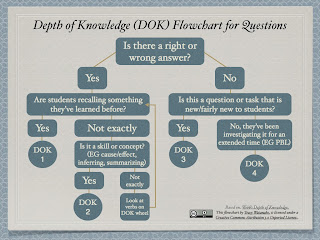
        There's not a set guide for creating text-dependent questions; however, I like to use Bloom's Revised Taxonomy with Webb's Depth of Knowledge or this poster as my guide:


        Student Task

        What can they do/create as evidence of learning? The culminating activity should capitalize on the key ideas, essential questions, or their understanding. It should include:
        • mastery of one or more of the standards;
        • writing;
        • and, is structured as independent practice (for a formative assessment).
        As a formative assessment, the teacher needs to know how it will inform her/his instruction. Here are the steps to think through:
        • Will it be graded? If so, a rubric needs to be created and shared with the students. If not, prepare a place to record anecdotal notes or a checklist of mastery.
        • How will instruction change based on the information you've learned about student understanding? What scaffolds can you put in place to help, if needed. What extended learning can you provide (such as a blog post sharing their products with a community outside the classroom)?
        • What specific feedback can you give the students to help them progress?

        Final thoughts

        Close reading won't take place all of the time, and it won't need all of the steps I've shared. It is a strategy that will look different for different texts based on the genre, purpose for the reading, the text complexity, and the student's ages.

        While planning for close reading, consider your readers, your text, and how to support them with scaffolds. Scaffolds are meant to be taken away, therefore, the steps of a close read will change over time.

        In Close Read Complex Text, and Annotate with Tech--Part 2, I will expand on annotating with iPads, and in Close Read Complex Text, and Annotate with Tech--Part 3, I expand with annotating with Diigo.
        • If you have a great app or way to annotate with technology, please share. I'm interested in learning from you.
        • What does close reading look like in your class?
        • What tips or resources can you share about creating text-dependent questions?
        • What other questions about close reading do you still have?
        • How else does this post connect with you?
        Special thanks to Gina Fraher for the opportunity to close read with her students, and Jodi Walker for inspiring me to give this a try.

        Thursday, March 21, 2013

        Collaboration Coaching Chronicles

        Today is our last Collaboration Coach Meeting of the school year, and we're celebrating all they've accomplished at their sites.

        Collaboration Coaching is modeled after the research-based Microsoft Peer Coaching Program, developed by the Peer-Ed Team. The training focuses on coaching and collaboration skills; best practices in lesson design and instruction; and, technology integration and engaging practices.

        Collaboration Coaching fosters an environment where it is safe to take risks to try innovative practices, to engage students in critical thinking, collaboration, communication, and creativity. This shift is occurring more rapidly because teachers have ongoing professional development by having someone they trust, a Collaboration Coach, who is just down the hall or right next door.

        Coaching Chronicles

        There are six fantastic "Coaching Chronicles" inside this Prezi created by the coaches at each of the schools sharing their "story" of 21st century learning and collaboration at their campuses.


        If your site blocks YouTube, you can view the FPES Coaching Chronicles via Vimeo:

        What is Collaboration? from S Hamman on Vimeo.

        You can also view the DVES Coaching Chronicles via Vimeo:


        Coaching 2012-2013 from Tracy Watanabe on Vimeo.


        Classroom experiences and student learning

        I've had the distinguished honor of visiting each of the Collaboration Coaches in their classrooms and am inspired by the learning taking place. Some of those highlights are:
        • Listening to students share what made their site a valid and reliable source as they created annotated bibliographies of evidence to defend their claims on Diigo in Meaghan Davis' 7th-8th grade Language Arts class at AJUSD's Alternative Community.
        • Listening to Sandy Rollefstad's Chemistry students share the mathematical equations behind their chemical reactions, then demonstrate those chemical reactions.
        • Watching Bethany Avery's 3rd grade students use 21st century and ELA standards through collaborating with an expert about hummingbirds.
        Jamie DelRosa's 1st grade students researching on iPads.
        • Feeling the enthusiasm in Jamie DelRosa's 1st grade class as students collaboratively research about dwarf planets.
        • Watching Denise Cook's students engage in a PBL about heros, with the focus on Harriett Tubman.
        • Watching the students in Colleen Tucker's and Megan Rivera's classes consistently explain their reasoning and thinking behind their learning, and learn through the engagement of technology integration.
        • Viewing dynamic flipped learning for student choice and differentiation in Sheryl Anderson's Social Studies classes via Moodle.
        • Honestly, the list can go on and on.

        Final comments

        It is such a joy to work with so many passionate educators who make a difference in so many lives. Thank you AJUSD Collaboration Coaches for building a 21st century learning community!
        • What stands out to you about the learning taking place in these classrooms based on their Coaching Chronicles or the highlights listed above?
        • How do you celebrate the accomplishments of your classrooms and schools?
        • What would you like to share or ask about Collaboration Coaching or building 21st century, student-centered classrooms?

        Wednesday, February 13, 2013

        Digital Storytelling and Stories with the iPad

        Digital storytelling is a first person story, where the narrator is digitally sharing his or her story; while a digital story is narrated in third person and shared digitally. Both can include imagery, background music, or motion. They also incorporate storyboarding, writing a script, revising, and publishing (the elements of writing).

        Benefits

        Here are some of the many benefits of digital storytelling and digital stories:

          Get Adobe Flash player

        • The 21st century skills and ISTE's NETS applied are critical and creative thinking; written, oral, and digital communication; collaboration; authentic learning; digital fluency; informational fluency; and project management.
        • It is great differentiation for all students including ELL, gifted, and special needs.
        • It increases student engagement in a meaningful and relevant task.
        • It can be used as an authentic assessment.

        Common Core Standards

        Many specific content standards can be addressed through digital stories. Here are some of the Common Core Standards that digital storytelling and digital stories address:
        • CCSS.ELA-Literacy.CCRA.W.6 Use technology, including the Internet, to produce and publish writing and to interact and collaborate with others.
        • CCSS.ELA-Literacy.CCRA.W.3 Write narratives to develop real or imagined experiences or events using effective technique, well-chosen details and well-structured event sequences. 
        • CCSS.ELA-Literacy.CCRA.SL.4 Present information, findings, and supporting evidence such that listeners can follow the line of reasoning and the organization, development, and style are appropriate to task, purpose, and audience.
        • CCSS.ELA-Literacy.CCRA.SL.5 Make strategic use of digital media and visual displays of data to express information and enhance understanding of presentations.
        • CCSS.ELA-Literacy.CCRA.SL.6 Adapt speech to a variety of contexts and communicative tasks, demonstrating command of formal English when indicated or appropriate.

        Types of digital stories and some prompts

        Digital storytelling and stories can take shape as a:
        • Short Story: This narrative shares an insight, a perspective, or an entertaining story.
        • Myth, Legend, Tall Tale, Folk Tale, or Fable: While each of these are a little different from one another, they tend to describe origins, values, beliefs, accomplishments, or special events. 
        • DocuDrama or Historical Storytelling: This digital story is told from the point of view of a person (or object) in a different era. It requires researching a time period, then using creativity to have those facts come to life.
        • Describe and Conclude or Reflective Storytelling: Tell about something you're learning and the impact it has on you.
        • Public Service Announcement, Advertisement, or Persuasive Story: This digital story has the purpose of calling others to action for or against something else.
        These prompts were inspired by Bernajean Porter's Digital Storytelling Across the Curriculum
        Examples and explanation


        Step 1: Writing the script and planning the project
        Click to download
        • Prompt: I'd choose one prompt to introduce the process of digital storytelling to students. I might even do the first one as a whole group with parts and roles shared by the students. (Here's the first try from a second grade class and a Kindergarten student). As our class becomes confident with the process and media, I'd open it up to more choices and smaller groups/individual productions.
        • Teaching about the writing: Teach the importance of first person for adding spice to the story; share an interesting problem, perspective, or insight; and use strong word choice to convey the message.

        Step 2: Production, apps, and digital tools
        • Choose the app: When I am introducing the digital storytelling process to classes, I choose the app for them to use. Once the process is established and they have a toolbox of apps (or sites) to use, I give them a choice in tools.
        • Images and Creative Commons: Have students create their own images, take their own photos, or find photos that have Creative Commons Licenses and have them properly cite the photo either on the same page as the picture or at the end.
        • Background music and Creative Commons: If there is not music to choose from on the app or site, then find music that is legal to use in your video. I select music from the list suggested by Creative Commons. However, background music is not a necessity, especially if it's new to the class. 
        • Production: Before production, I treat this part of the process much like I would the rough draft of a writing assignment with editing and revising. Here's where the mini-lessons come in about voice, word choice, etc. I like to conference with my students to make sure they are ready for production, then I allow them to start once they've gathered all of the photos and music (optional).
        Apps

        I'm highlighting five apps appropriate for various ages and for beginners (with integrating the iPads and/or are new to digital storytelling). These apps are also currently free.
        • Fotobabble: The Fotobabble app makes narrating and editing a single photo easy. Once it is saved on the iPad, it can be opened at the desktop site and shared with others via the embed code on a website/blog or by the URL. The drawback is it only allows one image. Therefore, if the student wants to show more images, a collage of images can be created.

        • Toontastic is a cartoon storyboard for recording digital stories. This is a great app to apply creativity, speaking and listening, with narrative elements. With this app, once you tap Done, it has the "Share this cartoon online on ToonTube" checked. To utilize this, create an account from the iPad. You'll get an email from Toontastic for everything created in Toontastic on your iPads (if you log into them on the iPads), and you'll give the final approval to publish their creations. On that page, there is also an embed code for your blog/website (and options to email, Tweet, or share it on FaceBook).
        • Educreations is an interactive whiteboard that can be used for digital storytelling by adding pages to the presentation and inserting photos (or drawing your own). Educreations is an iPad app that can also be accessed from your browser. Once saved on the iPad, it will save to the account created which gives an embed code for the Web and the URL.

        • StoryKit: This is an easy app to use. Here you have the option to "Share." Once you click share, you will Send story link by email. If the email is not set up, you can still copy the link and paste it into Gmail if you log on through the Internet (Safari). Even though I don't see an embed code, you can still share on a website/blog by taking a screenshot of the cover of the story, then place a link in the comment (or make the photo itself a hyperlink) to take your readers to your story.
        • Storyrobe: This app walks you through the steps to create a digital story. When you are done creating, you can save it to the photo album, share it to YouTube, share on Storyrobe, or send through an email as a MP4. If YouTube is blocked at your school, I recommend importing the MP4 to Vimeo or Capzles.

        More resources

        Step 3: Publishing and connecting with an authentic audience

        Celebrate their creations by sharing with others.

        Building an authentic audience to view the digital stories is powerful for students. They are no longer creating a project just for the teacher -- it's for their families, friends, and people around the globe.

        Each of the apps listed above have a description for sharing on the Internet. Emails can be sent to parents with the URL for where the digital story is published (or through the RSS subscription for the class blog). When shared on a teacher's blog, a Tweet can also be sent through Twitter asking for comments on their work by adding the hashtag #comments4kids. If your school has a FaceBook account, share the link there.

        Reflection, evaluation, and rubrics

        Providing specific feedback along the way with daily goals is part of the process. Self-evaluations using the scoring guides or rubrics are strong formatives for the students to target their next steps.

        Formal or informal student reflection is part of the process. It's important that a positive class atmosphere is established for this step.
        • Asking reflective questions: Have partners share their work with one another and ask them, "What parts or images captured your interest or attention?" 
        • Create your own rubric: If you end up creating your own rubric, remember to focus on your content standards the most with only a little emphasis (if any) on the technology piece.

        Final thoughts

        Digital storytelling is fabulous for content learning, 21st century learning, and active engagement. If task predicts performance, then my money is on digital storytelling.
        • What apps or digital resources would you add to this list?
        • What tips or questions would you add to this conversation about digital storytelling?
        • How else does this post connect with you?